- ITABASHIKU TOKYO 174-0014 JAPAN
- Phone: +81 90-323-0053
- Email: ansari@shinchuo.com
How To Buy
Step-by-Step Bidding Guide
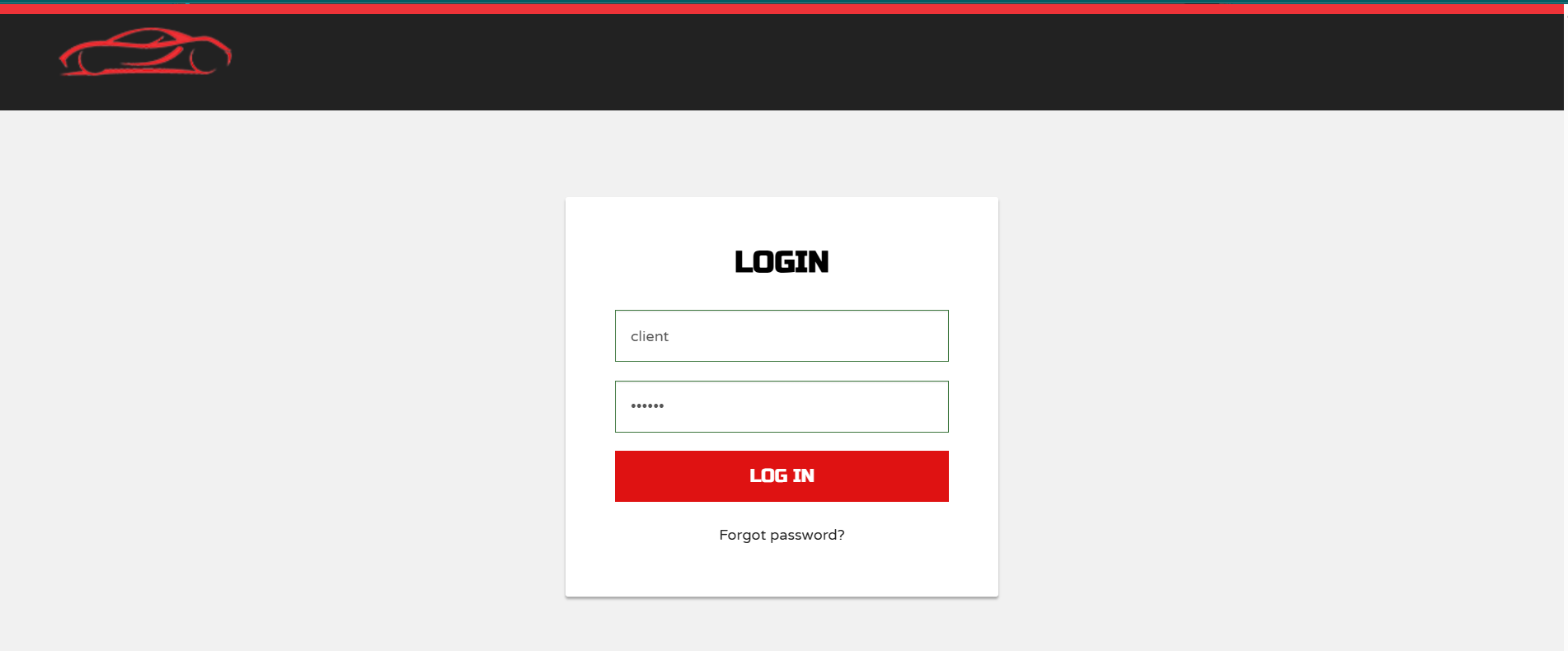
Login or Register
To access the auction platform, you must first log in. New users must complete registration with accurate contact and port details to enable bidding privileges.
Browse & Filter Vehicles
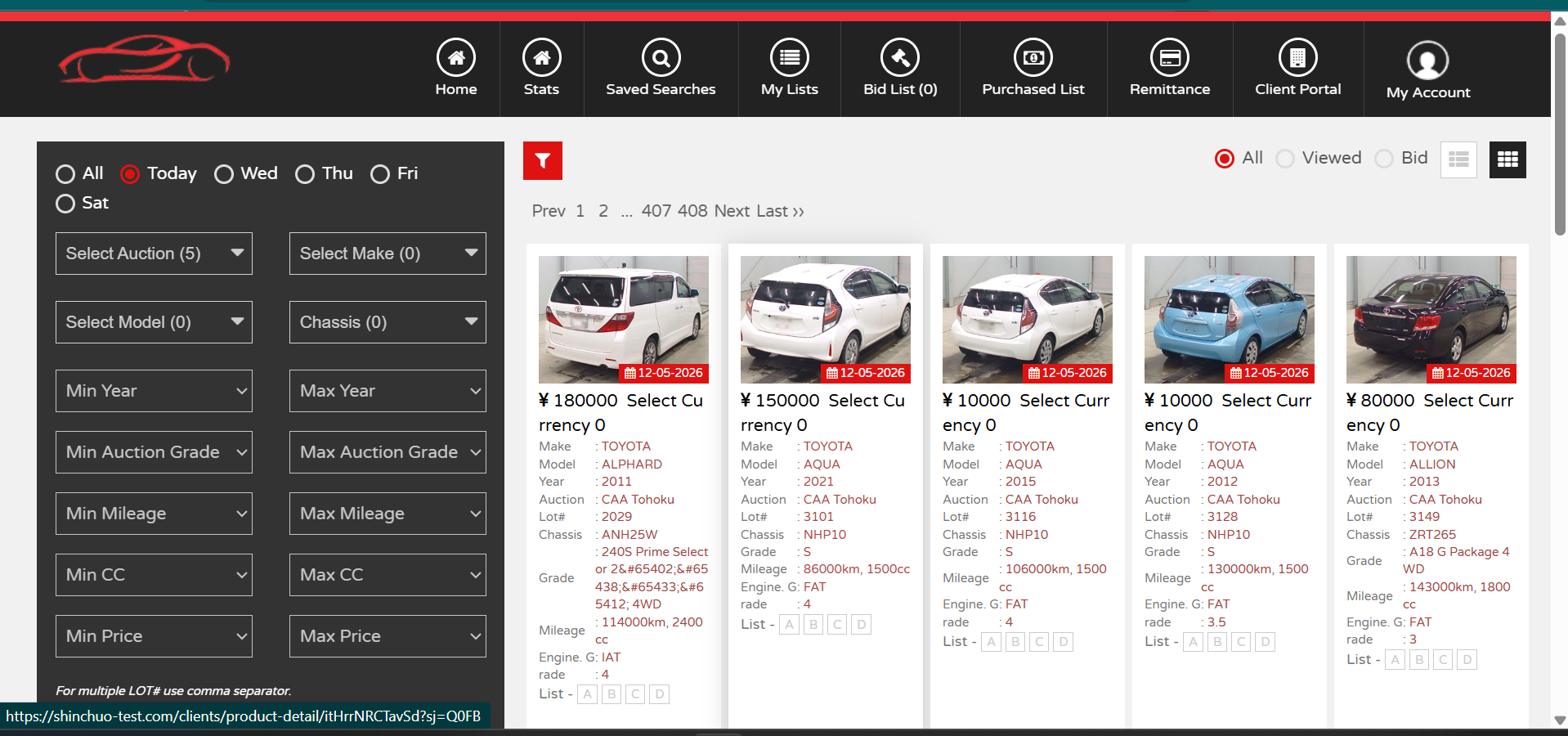
Access a live selection of vehicles on the main dashboard. Use the filter sidebar to refine results by auction date, make, mileage, or auction grade.
View Vehicle Details
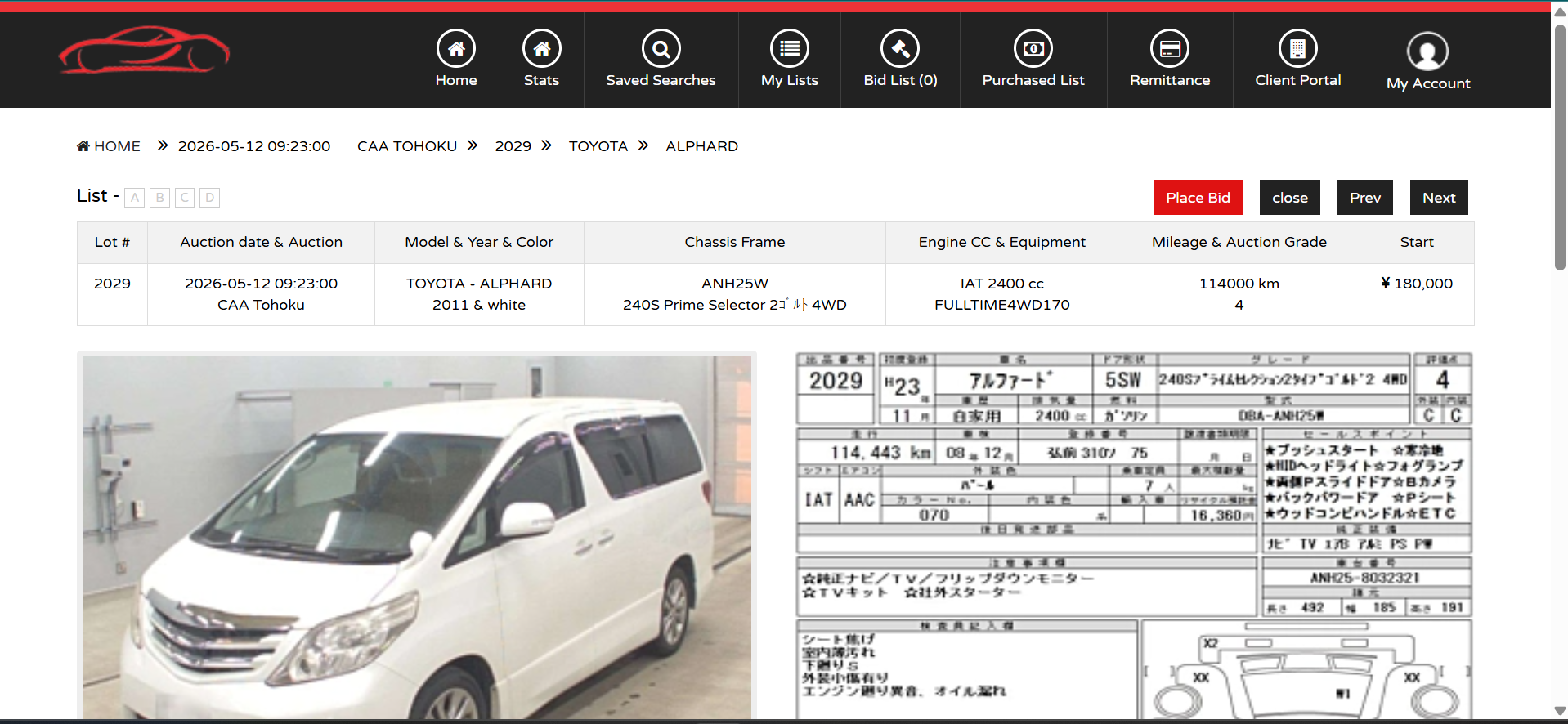
Click on any listing to see full specifications, including chassis frame, engine CC, and auction inspection sheets.
Initiate a Bid
Once you find a vehicle of interest, click the red "Place Bid" button located at the top right of the listing header.
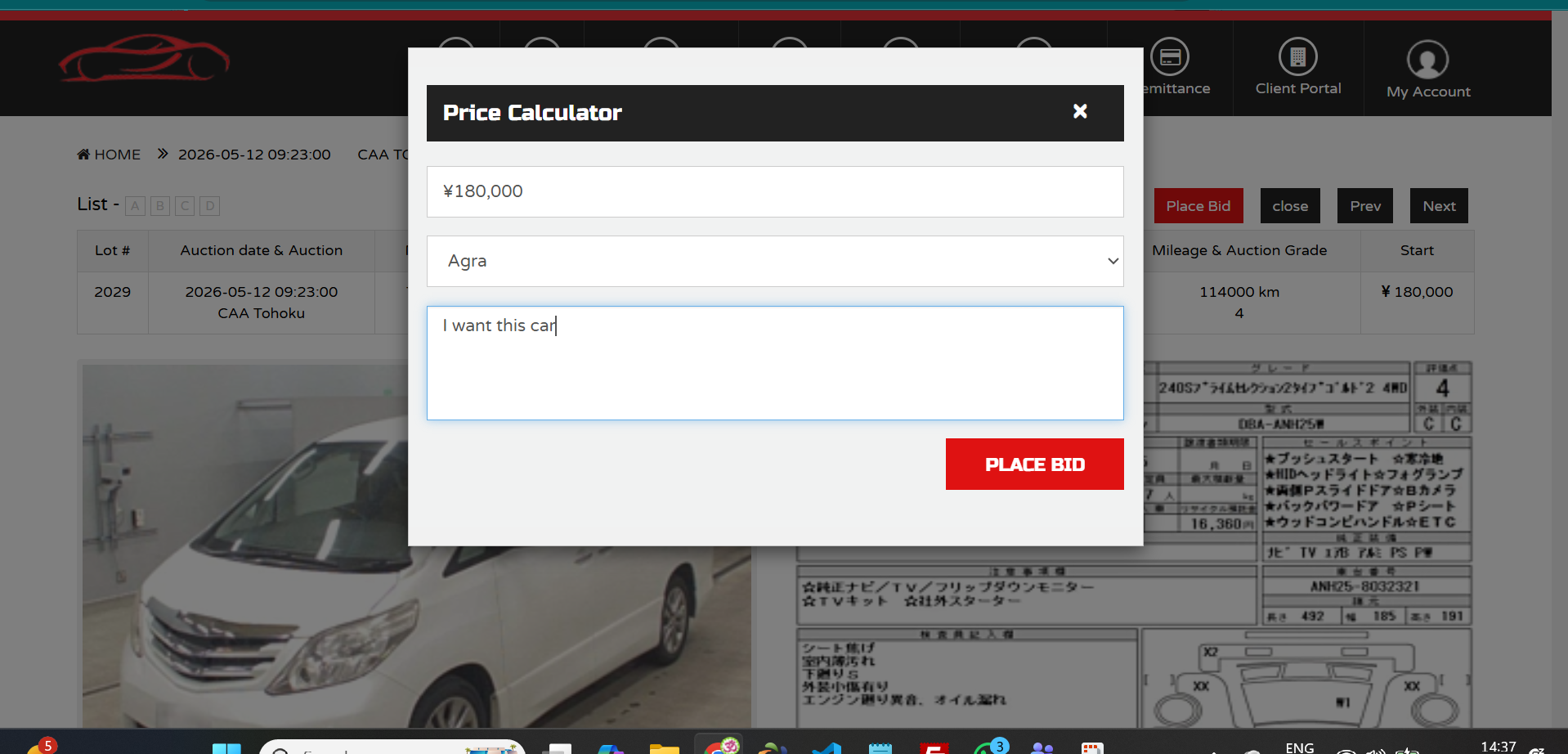
Fill Bid Information
The Price Calculator modal will appear. Ensure you enter:
- Amount: Your maximum bid in JPY.
- Port: Your default port.
- Message: Optional instructions for our team.
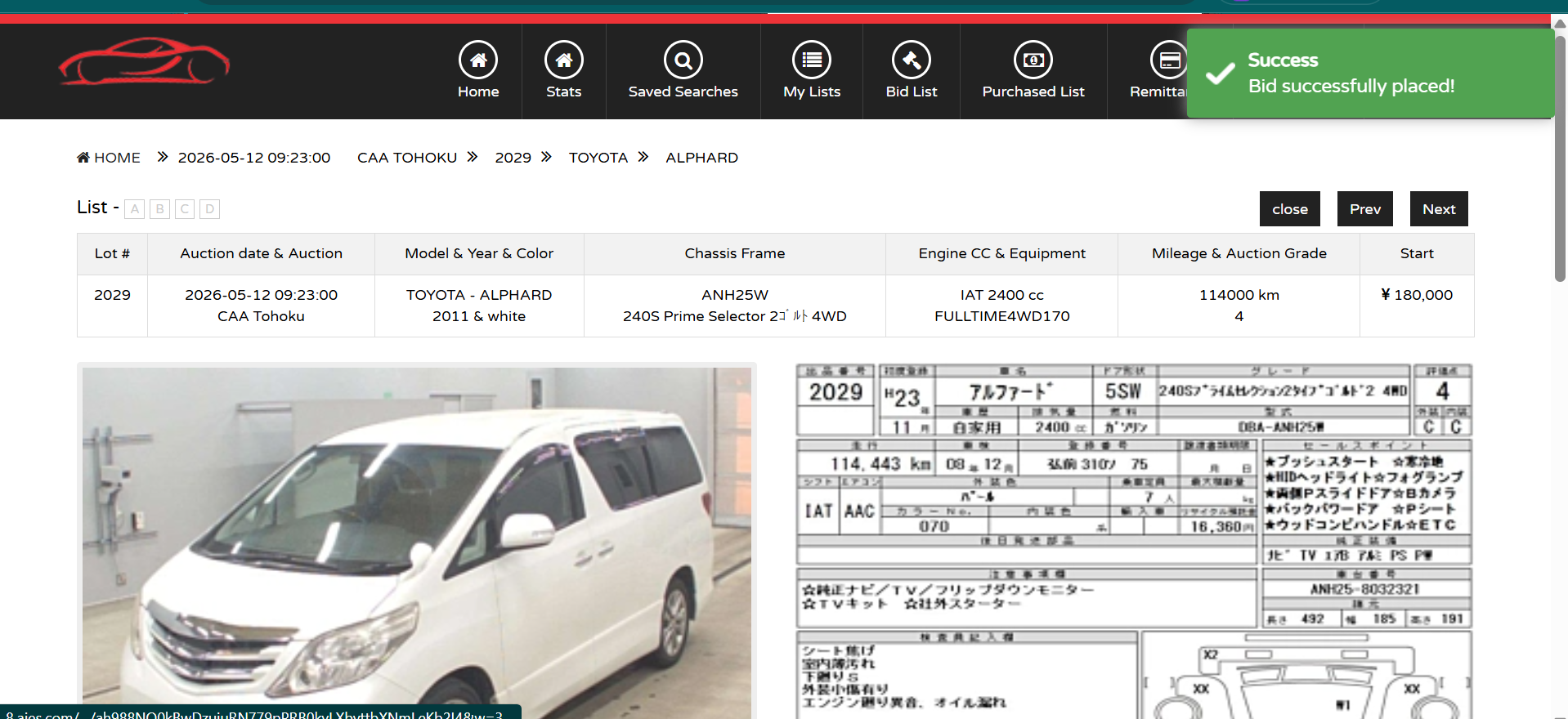
Final Confirmation
Confirm your bid in the final prompt. Once you select "Yes," you will see a green success notification indicating your bid is live.
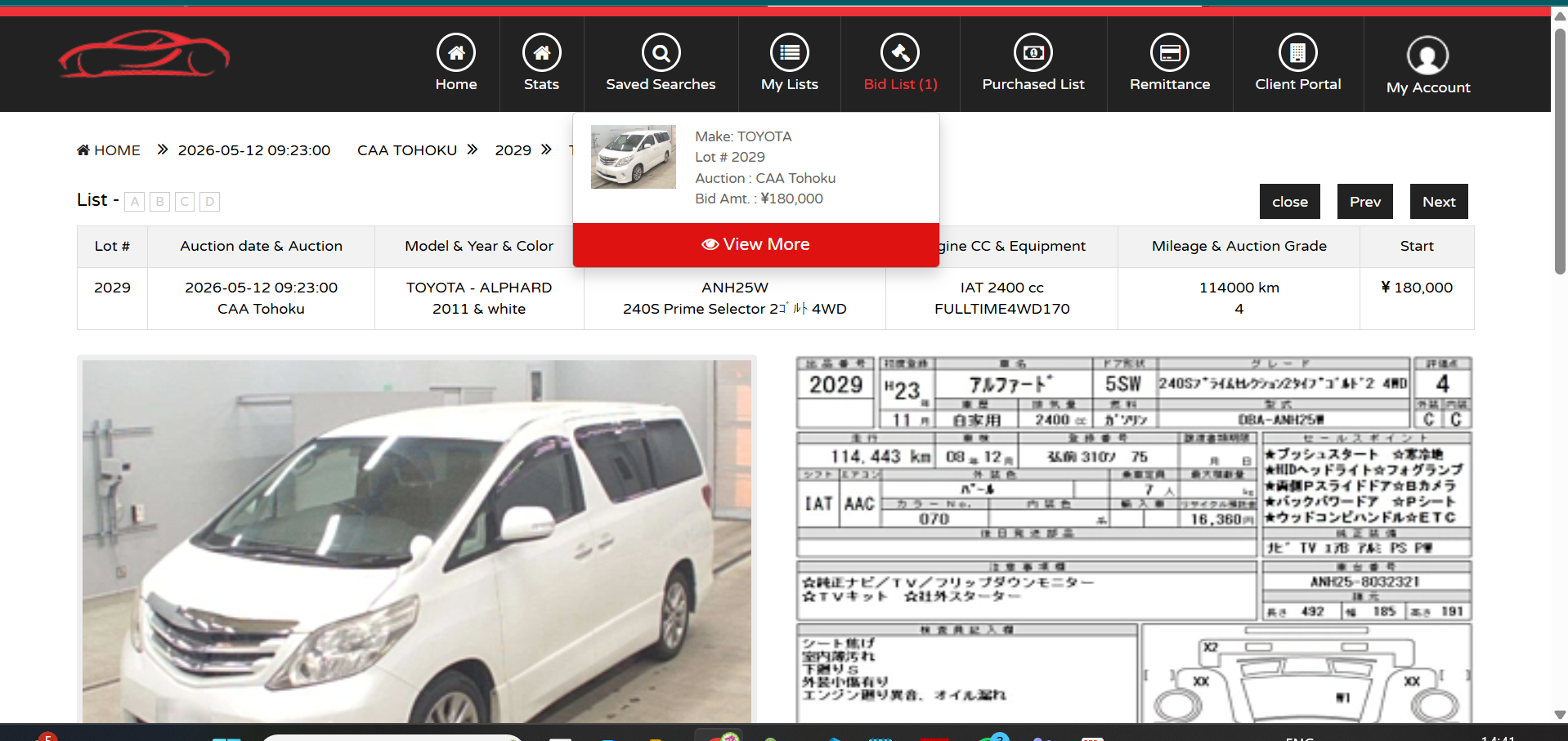
Access Your Bid List
Track activity via the "Bid List" link in the header. Hover for a quick summary or click "View More" for full management.
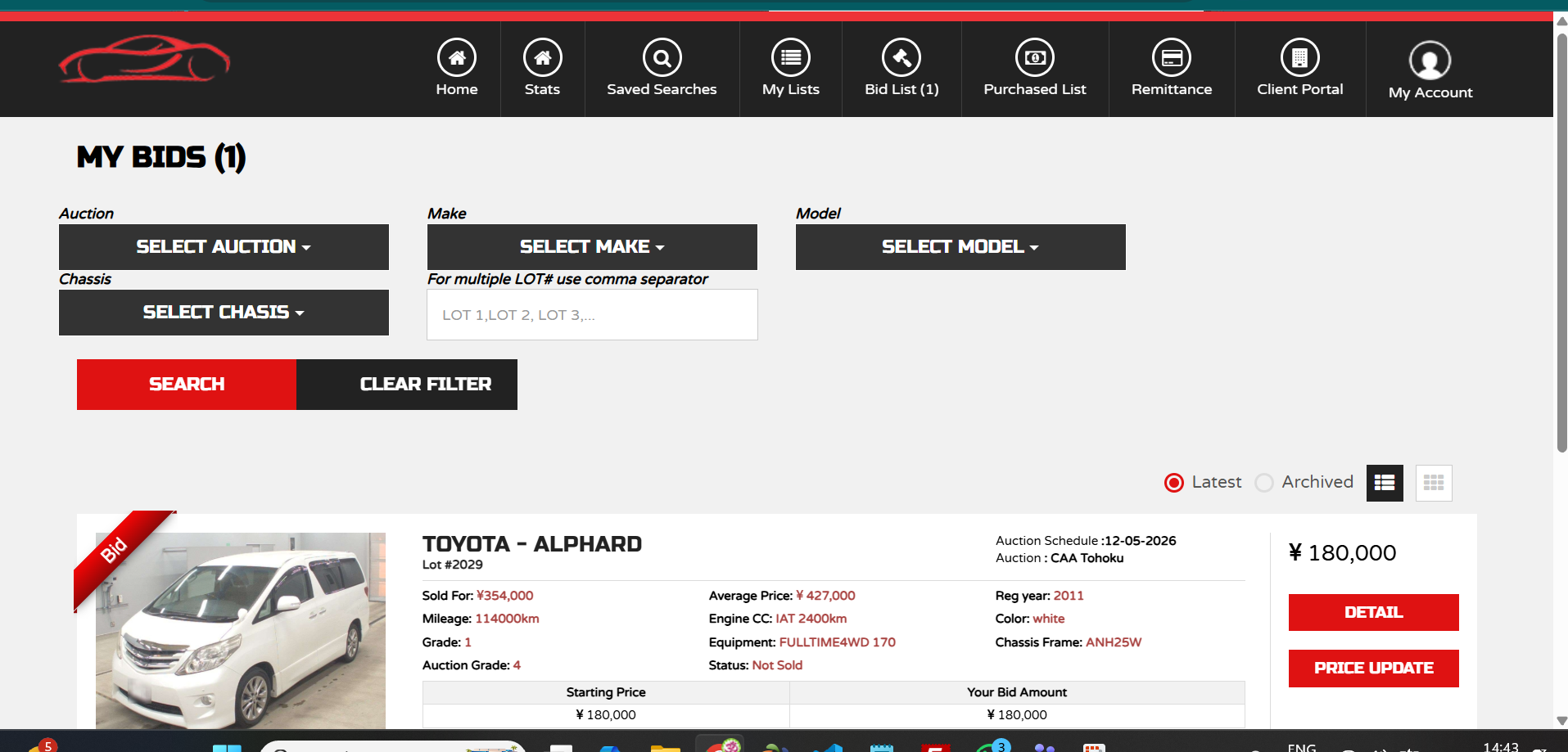
Manage Your Bids
Your personal Bid List allows you to monitor the status of every vehicle. You can switch between Grid and List layouts for easier viewing.
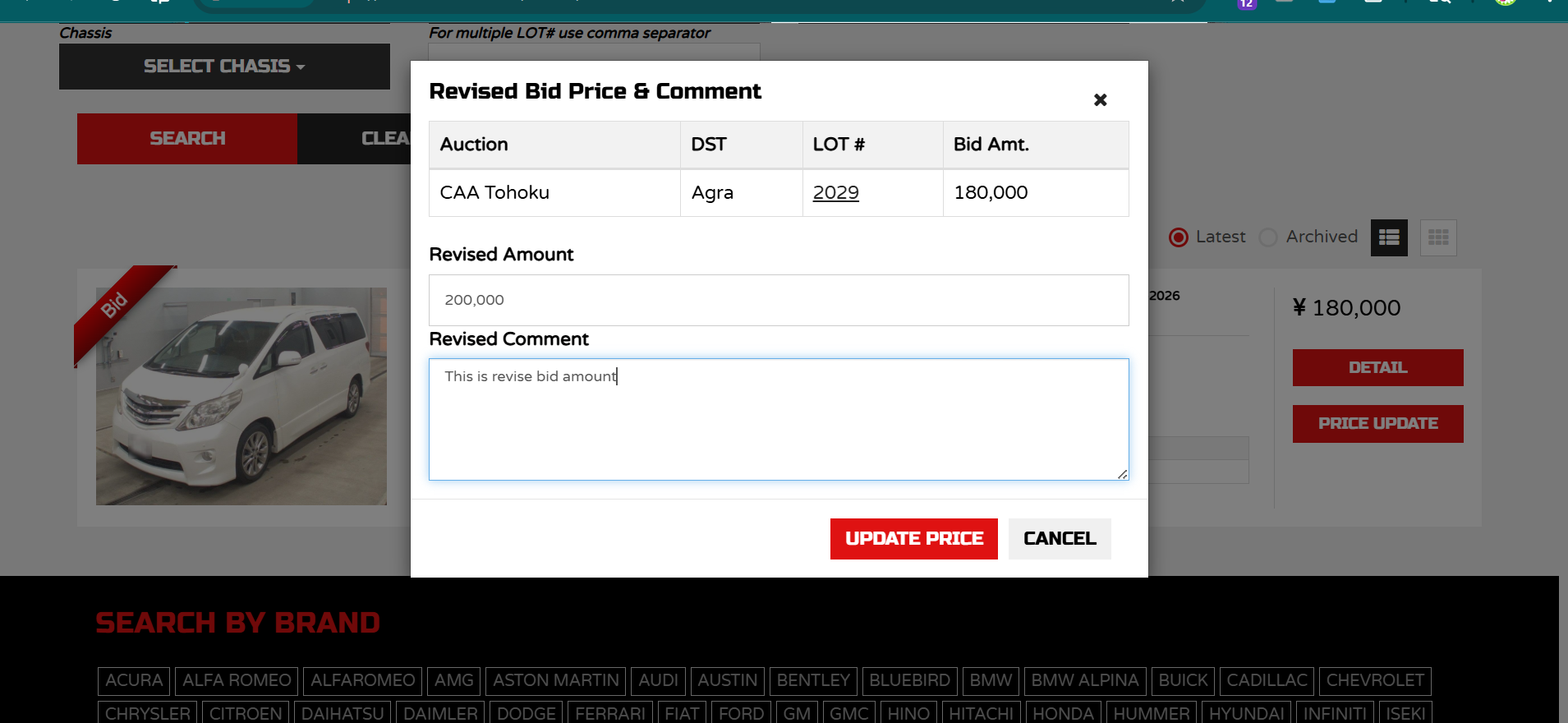
Price Updates
If you need to change your bid, click "Price Update". Enter your revised amount and comment for admin review.
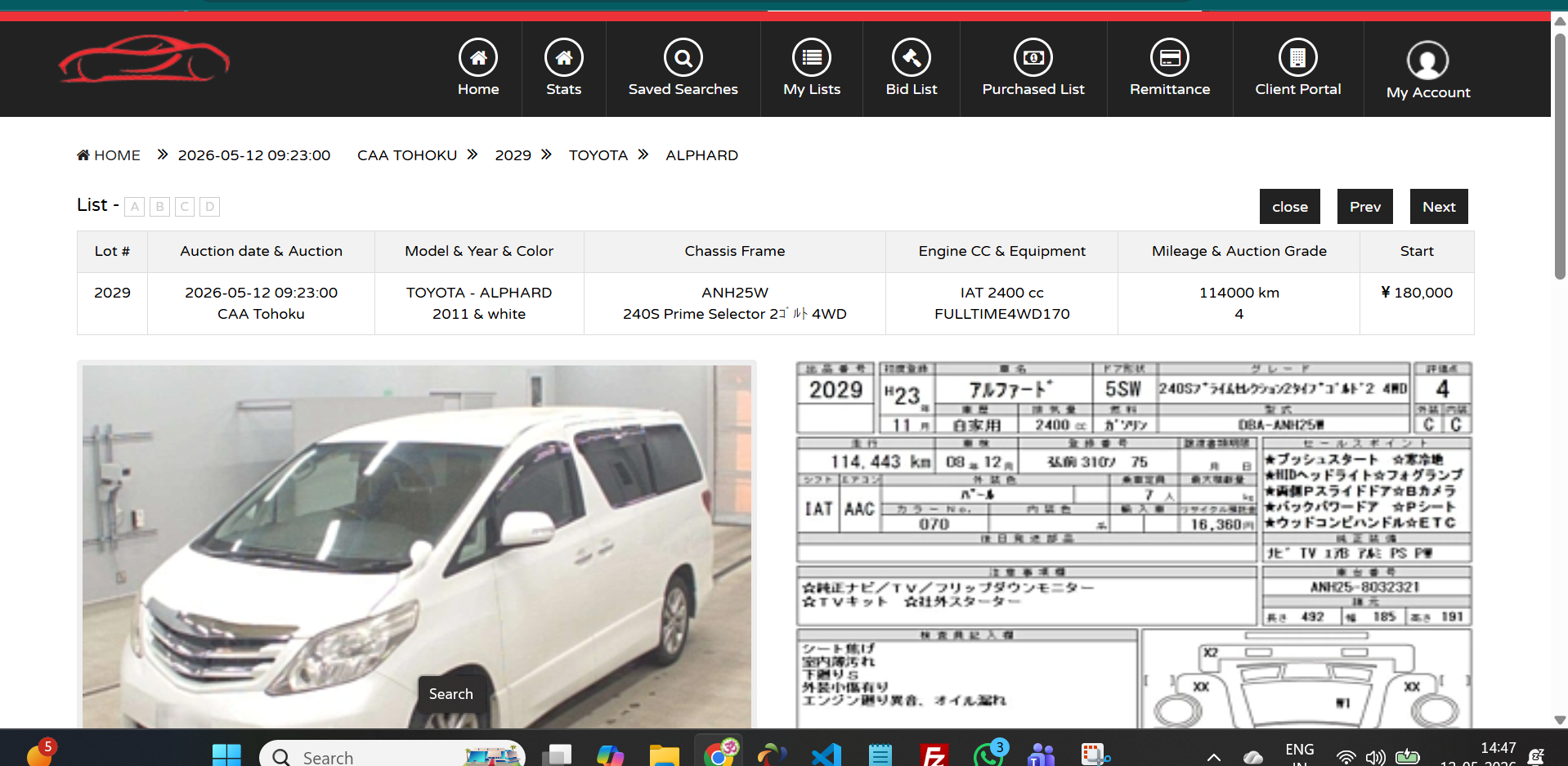
Purchased List & Remittance
Once a vehicle is won, it moves to your "Purchased List." Track your purchase status and manage "Remittance" via the header menu.